Unraid Templates vs. Docker Compose: When to use vs When to Avoid.
Community Applications templates
This is Unraid's own way of doing things — a graphical, form-based installer built on top of Docker. You browse Community Applications, find an app, fill in a handful of fields (ports, paths, a few settings), and click go. Unraid handles the rest.
What it's good at:
- Genuinely the fastest path from "I want this app" to "this app is running." No files to write, no syntax to get wrong.
- Update notifications built right into the Unraid dashboard — you'll see a badge when a new image version is available.
- Every field is labeled and explained in the GUI. Good for a single, standalone service you don't need to think about again.
Where it gets limiting:
- Each template manages exactly one container. The moment an app needs a companion service (a database, a cache, a second process it depends on), you're now managing multiple templates by hand and wiring them together yourself.
- Your actual configuration lives inside Unraid's template system, not as a plain file you can read, back up, or drop into another server. If you ever move off Unraid, that config doesn't travel with you.
- Neither method actually protects you from a container helping itself to more CPU or memory than you'd like by default — that's true of Compose too, not just templates. The real difference is visibility: a resource limit sitting in a Compose file is right there every time you open it, while the equivalent setting in a CA template is tucked behind "Show more settings" and easy to skip entirely. I'll cover how to actually set these limits properly — on both sides — in a dedicated article on Docker resource management and security.
Docker Compose
Compose describes your setup in a plain text file — a docker-compose.yml — instead of clicking through a form. One file can define an entire stack: your app, its database, its cache, however many pieces it actually needs, all wired together with one definition.
What it's good at:
- Multi-container setups are what it's actually built for. An app plus a database plus a reverse-proxy sidecar is one file, not three separate things you're manually keeping in sync.
- The file itself is the documentation. Six months from now, you can open it and see exactly how something was configured — no digging through a GUI trying to remember which field you changed.
- Portable. That same file works on Unraid, a bare Linux box, a cloud VM, wherever Docker runs. Your setup isn't tied to Unraid specifically.
Where it gets limiting:
- No GUI hand-holding. You're editing YAML directly, which means you can absolutely typo your way into a broken stack, and Unraid's friendly update-notification badges don't apply the same way.
- A steeper first step if you've never touched a config file like this before — the Community Applications template for the same app might genuinely be easier the first time.
A real side-by-side: Vaultwarden
All of the above is easier to actually feel with a concrete example instead of abstract pros and cons. Vaultwarden's a good one to use — it's popular enough to have a well-maintained Community Applications template, and its official Compose setup is clean enough to be genuinely readable. Here's the exact same end result, both ways.
The Community Applications way
You'd search Vaultwarden in Community Applications, hit install, and fill in a form. The core fields should look like the following:
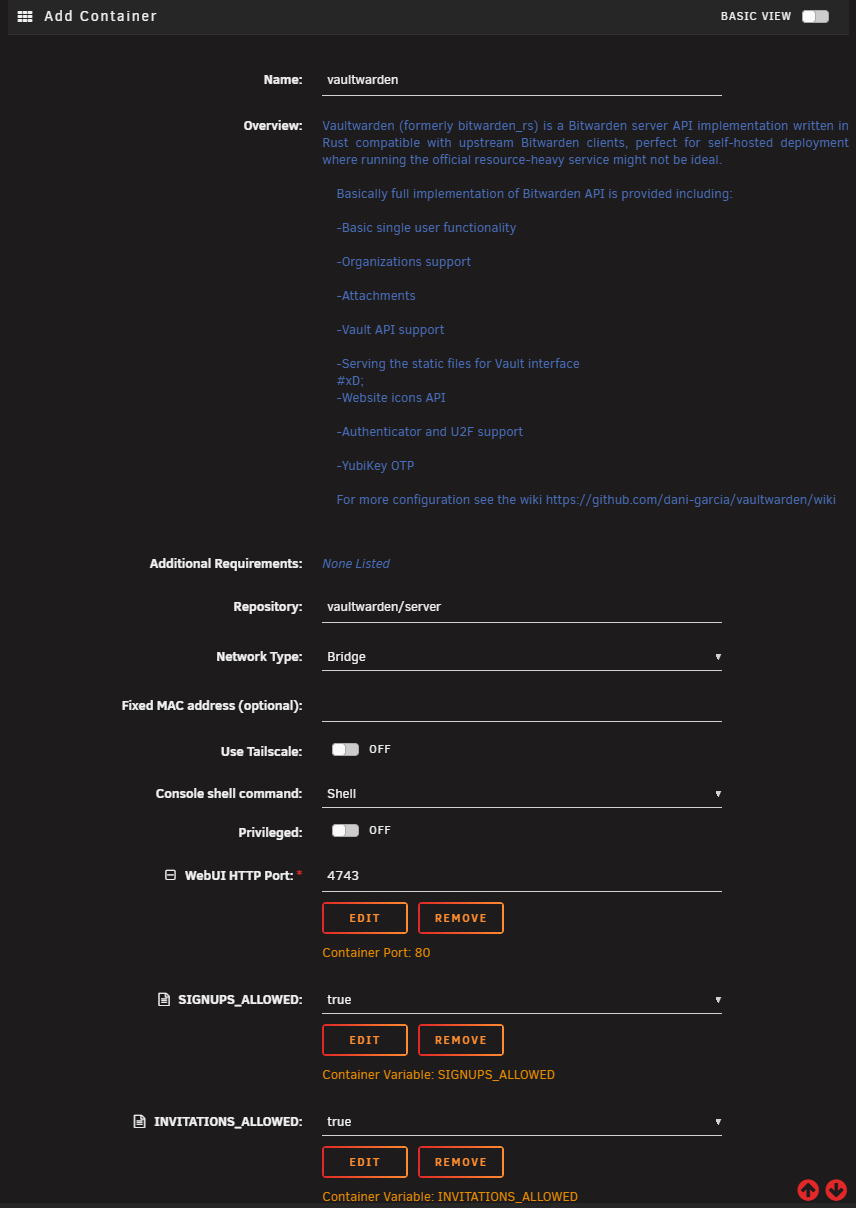
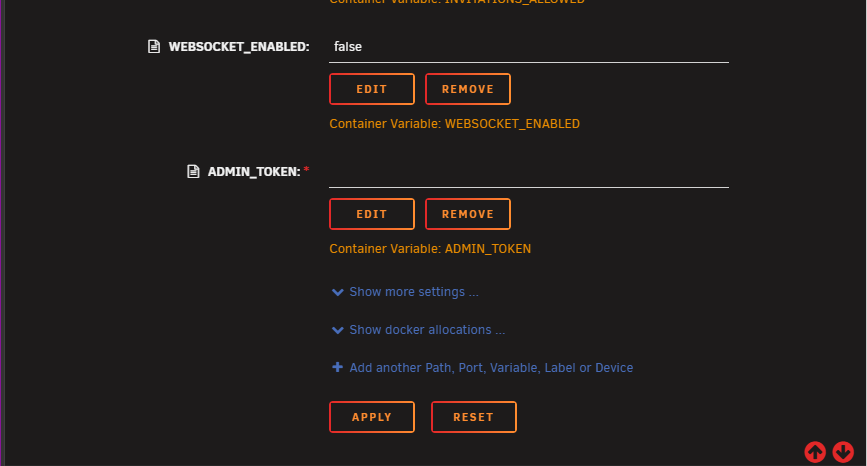
Sometimes you may also have additional options under "Show more settings," in Vaultwarden’s instance - it’s just the primary place where the container will store its data. You type values into each box, hit Apply, and Unraid builds the container for you behind the scenes.

The Docker Compose way
Same app, same settings, split across two files instead of one form:
docker-compose.yml:
services:
  vaultwarden:
    image: vaultwarden/server:latest
    container_name: vaultwarden
    restart: unless-stopped
    ports:
      - "4743:80"
    volumes:
      - /mnt/user/appdata/vaultwarden:/data
    env_file:
      - .env
.env:
SIGNUPS_ALLOWED=true
INVITATIONS_ALLOWED=true
WEBSOCKET_ENABLED=false
ADMIN_TOKEN=your-long-random-admin-token-here
How Compose varies for environment variables
Notice the Compose file itself doesn't contain a single one of your actual settings — no admin token, no signup preferences, nothing specific to your deployment. It just says "load whatever's in .env." That separation is the whole point:
- The
.envfile is the only place your actual secrets and settings live, which means you can.gitignorejust that one file if you ever put your compose files under version control, without exposing your admin token in the process. - The same
docker-compose.ymlstructure works for basically any app — swap the image and the env vars, and the shape of the file barely changes. The GUI, by contrast, gives you a differently-arranged form for every single app. - Rotating a secret (say, generating a new admin token) means editing one line in one small file, not hunting through a GUI form to find the right field again.
The Community Applications version isn't worse — it's genuinely faster to get running the first time, and you never have to think about .gitignore at all if you don't want to. But once you see the two side by side, it's easier to understand why Compose becomes the better choice as soon as things get even slightly more complex than one straightforward container.
So which one do I actually use?
Both, depending on the app.. My rough rule of thumb: standalone apps with no dependencies (something that's just one container, doing one job) are usually fine as a Community Applications template — there's no real multi-container complexity to justify a Compose file. Anything with real moving parts — a service plus its database, anything I'd want to back up and redeploy identically somewhere else someday — gets a Compose file instead.
Most new deployments I've started leaning more heavily on Compose, though — there are often brand-new apps that haven't been submitted to the app store yet, or ones where I'd rather set my own requirements around how they run than accept whatever a template author decided.
The Compose Manager plugin
To actually do this, I primarily use the Compose Manager plugin from the same Community Applications store — it's a nice crossroads between editing raw Compose files by hand and the friendliness of a template-driven workflow.
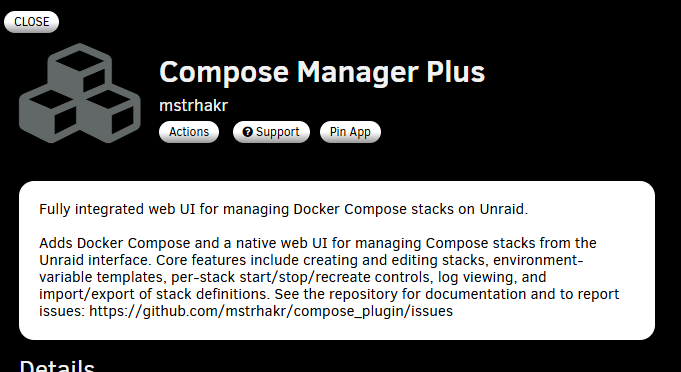
By default - the compose plugin stores “projects” inside /boot/config/plugins/compose.manager/projects/ - I highly suggest backing up this directory (along with your entire boot drive as well - article coming soon for that). Each folder in this path will be part of a “stack” One other unique benefit of compose is that you can spin up multiple containers at a time - this is handy for when you have an app that requires an external database, or other containers ran side-by-side in order for the primary container to function.
Closing thoughts
Neither of these is the "correct" way to run Unraid — they're just different tools for different amounts of complexity, and most of us end up using both depending on what we're deploying that day. If you're just getting your feet wet, don't feel like you need to skip straight to Compose because it looks more "serious." Start with Community Applications, get comfortable with containers actually running, and let Compose come naturally once you hit something a template genuinely can't handle on its own.